|
Using Rainbow and Horizon with Wordfast |
| Back to Previous Page |
|
Rainbow and Horizon are two freeware tools that can be used in conjunction with Wordfast. Rainbow, among other utilities offers filters to prepare files in various formats, for example HTML or XML, for translation with Wordfast. Horizon is a utility to help you navigate through the list of files to translate, convert the RTF translated files into the original formats and, when possible, see them in WYSIWYG mode. The following example shows the different steps to execute to translate a set of HTML sample files with the three applications. Wordfast can be downloaded at http://www.champollion.net, while Rainbow and Horizon are part of the RWS Tools and can be downloaded at http://www.translate.com/technology/tools/. To start Rainbow, select the Programs menu from the Start main menu, then select Rainbow from the RWS Tools sub-menu. Select the command Add
List from the Input
menu, or click the Add
List button at the bottom of Rainbow's main window. This will open
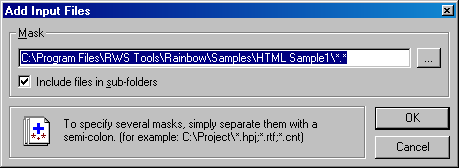
the Add Input Files
dialog box. Enter the path to the sample files installed with rainbow:
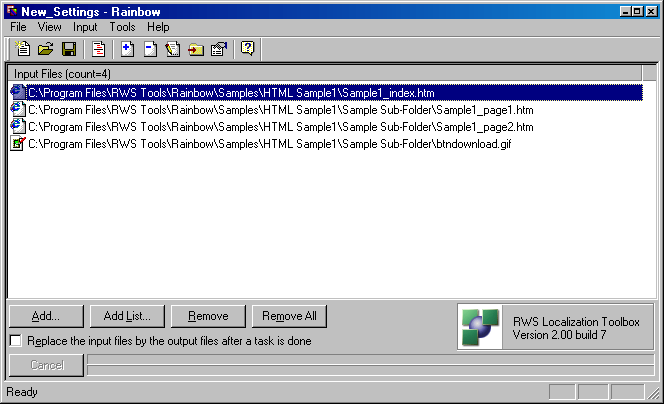
Figure 1 - The Add Input Files dialog box. Once the path is entered, click OK. This will get all the files in the selected folder (and its sub-folder) and place them in the Input Files list of Rainbow, as shown in figure 2.
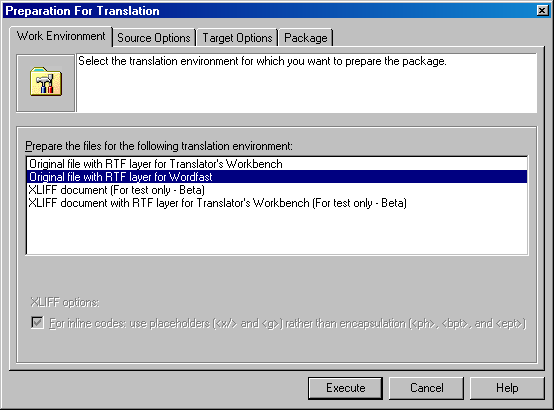
Figure 2 - Rainbow's main window with the Input Files list. Now you have to prepare the files for translation. To do this, select the command Prepare For Translation from the Tools menu. This will open a dialog box with several tabs where you can specify the various options to prepare the files. The first tab is Work Environment. Select the option Original file with RTF layer for Wordfast.
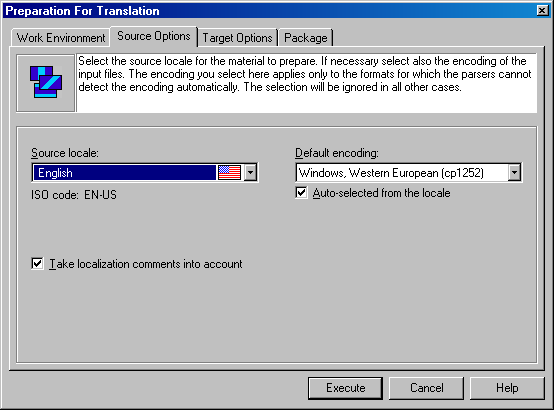
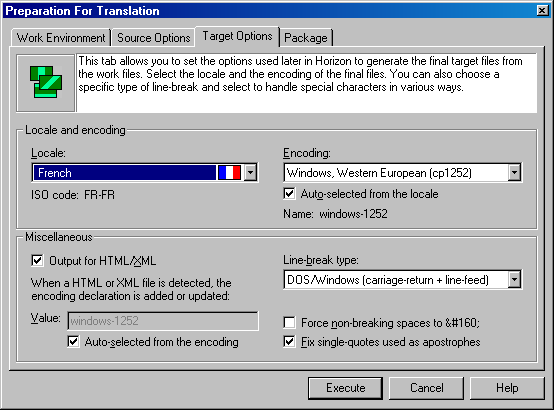
Figure 3 - The Work Environment tab. Move to the next tab: Source Option. The input files are in English-US, select the appropriate locale and the default encoding. This last setting is used only for the input files with not encoding declaration.
Figure 4 - The Source Options tab. Move to the next tab: Target Options, Here select the target language for which you want to prepare the files.
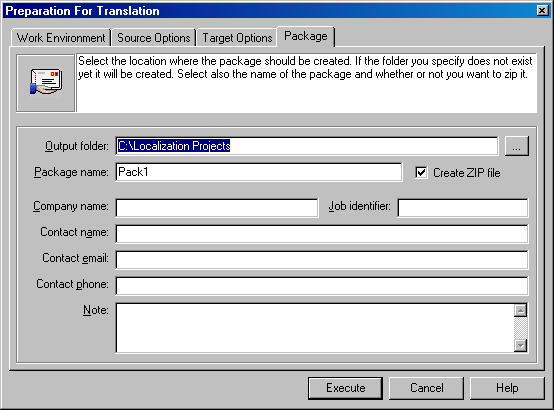
Figure 5 - The Target Options tab. Move to the last tab: Package.
This is where you specify the location of the output files. By default
they will go to a folder called
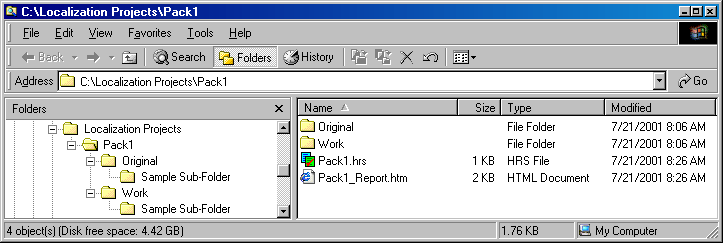
Figure 6 - The Package tab. When you have set all the options, start the preparation by clicking Execute. When the preparation is done, select the command Open Last Package Folder from the Tools menu, or click Ctrl+L. This will open the folder where the output files have been generated as shown in figure 7.
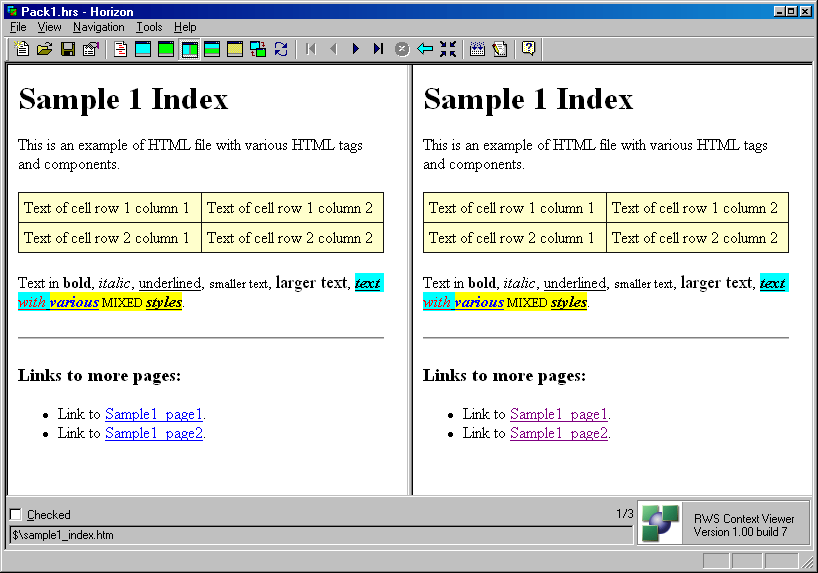
Figure 7 - The package directory structure. The package folder ( To start Horizon simply double click the
Figure 8 - Horizon displaying the original and translated files. The translated file displayed by Horizon is created automatically from the corresponding RTF. You can create all the files from their RTF by pressing F7, or selecting the command Update All Files from the Tools menu. You can rebuild the translated version of the file currently displayed by pressing F5, or selecting the command Refresh from the View menu. To start translating the file: select the command Edit File from the Tools menu, or press Ctrl+E. This will open the application associated with RTF (usually Word) and you can work on the file with Wordfast as you usually do. At any time you can see how your translated HTML file looks like: Save the file in Word with Ctrl+S (no need to close it), go to Horizon (press Shift-Tab) and refresh the display by pressing F5. The new HTML is created from the last version of the RTF file you have just saved and is displayed.
Figure 9 - Wordfast and Horizon together. You can use the Check box at the bottom of Horizon to remember which file has been translated and verified. Once all the files are ready, if you need the final HTML, simple make sure to rebuild all of them by using the command Rebuild All Files from the Tools menu. The difference between Update All Files and Rebuild All Files is that the first command regenerate the HTML only of the date/time of the corresponding RTF is newer than the HTML, the second command regenerates all the HTML files without looking at time stamps. If you need to send back only the RTF files, you can clean up the
|